Forms are used to enter or view information about a variety of mapped features (Restaurants, System Point, Septic Tank, Drain Field, etc.) and tabular records, such as Food Inspections, Permits and Operations and Maintenance events. Creating a Form is conducted using the Form Designer. This section reviews the Form Designer and provides examples of creating Forms.
Key Concepts
- A Form is created from a map layer or tabular record and can include any of the fields (attributes) for the corresponding mapped feature or tabular record. For example, a Septic Tank Form may include fields like Capacity Gallons, Type and Material, but it would not include fields for a Soil Boring or Drain Field.
- Forms can include other Forms, or Linked Data Forms, so that additional information can be entered/viewed. For example, a Restaurant Form can include Linked Data Forms for Inspections and Fees, and the Inspection Form can include a Linked Data Form for Violations. The result is that a user can enter/view information for the Restaurant, Inspection, Violations and Fees all on one Form.
- Forms are used to serve a number of workflows, including data collection, viewing information and creating output specific to a task, such as a Food Inspection or Onsite System Permit. When designing a Form consider the potential uses and if needed created iterations of the same Form to serve similar workflows, such as multiple Permit Forms for different types of Onsite Systems that are Permitted (Gravity, Mound, Alternative, etc.).
- Any number of Forms can be created and saved. An existing Form can also be used as a Template to create another Form. This enables users to quickly iterate through a number of similar Forms using a Template. For example, you may have a Form for a gravity system, dosed system, pressure dosed system and alternative system where each Form is targeted to the specific type of Onsite System.
Form Designer Overview #
Open the Form Designer by selecting the Form Designer button on the Main Menu.

The Form Designer will open and display a blank Form or an existing Form if one has been created. The Form Designer Menu will be used to manage Forms, including creating, editing, deleting, previewing and saving Forms.
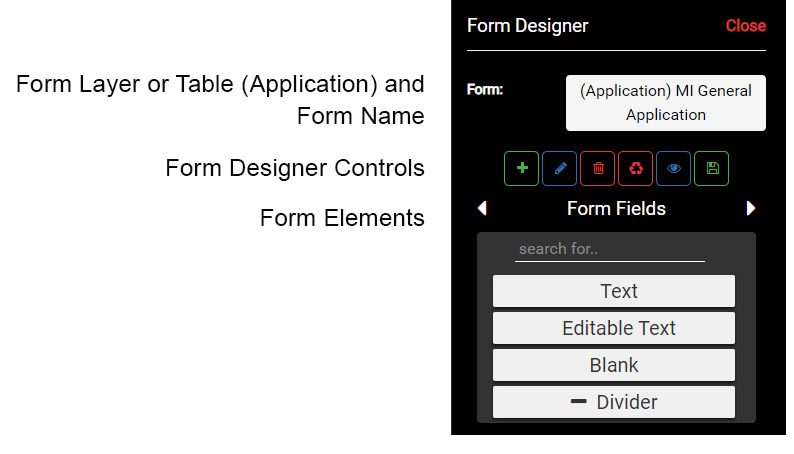
The Form Designer Menus are reviewed below:
- Form: is used to select an existing Form and displays the current Form name.
- Form Designer Controls: used to Create Form, Rename Form, Delete Form, Clear Workspace, Preview Form and Save Form.
- Form Elements: elements that make up a Form, including Form Fields, Layout, Feature or Tabular Record Fields and Linked Data Forms.
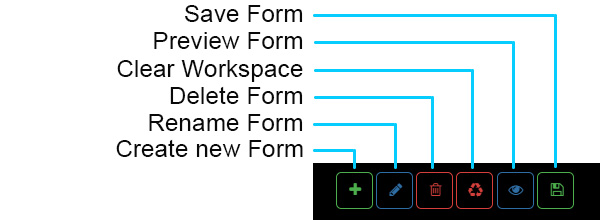
The Form Designer Controls provide the following options:
- Save Form: saves edits made to a Form.
- Preview Form: provides a working preview of the Form.
- Clear Workspace: Remove all Form Elements in the active Form. Note that this operation can’t be undone.
- Delete Form: delete the active Form.
- Rename Form: rename the active Form.
- Create New Form: creates a new Form with a blank workspace.
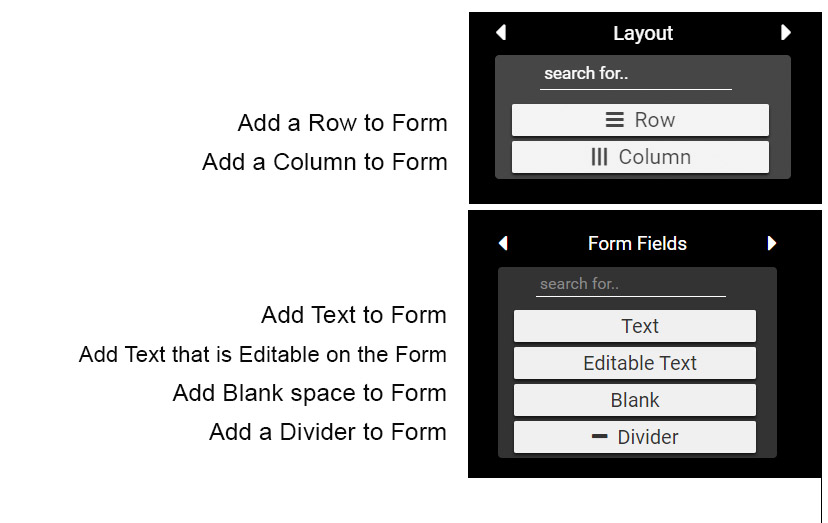
The Form Elements used in a Form are described below:
- Layout Elements
- Row: to add a new Row, drag the Row element onto the Form.
- Column: to add a new Column, drag the Column element onto the Form.
- Form Field Elements
- Text: to add Text to the Form, drag the Text element onto the Form.
- Editable Text: to add Editable Text to the Form, drag the Text element onto the Form. Editable Text is Text that appears on a Form as Text, but when you select Print on the Form the Text becomes editable. Use Editable Text for items such as Stipulations or Site Requirements that need to be dynamic.
- Blank: to add a Blank (white space) row/column tot the Form, drag the Blank element onto the Form.
- Divider: to add a Divider (horizontal line) to the Form, drag the Divider element onto the Form.
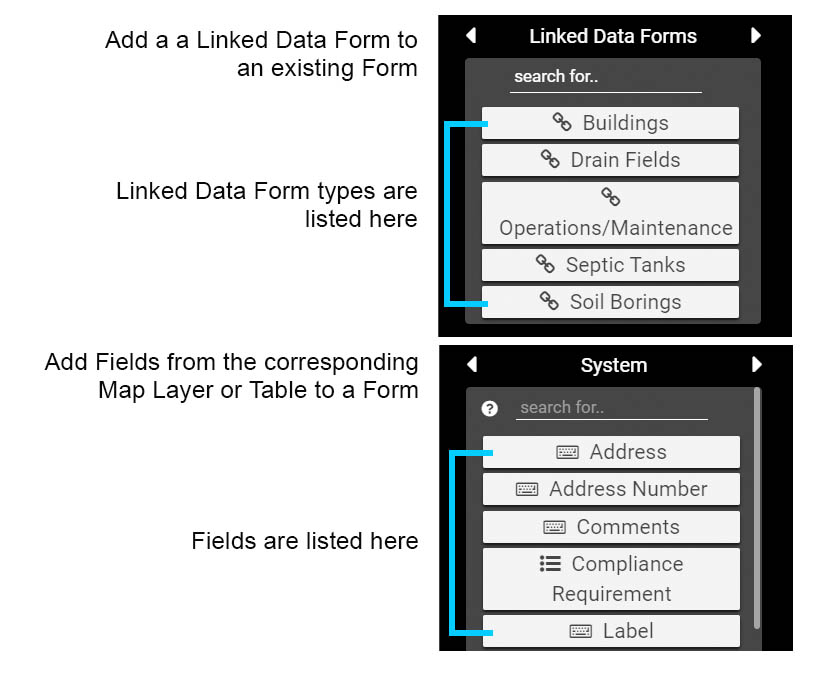
Linked Data Form options are described below:
- Linked Data Forms:
- Add another Form (Linked Data Form) to an existing Form. Use Linked Data Forms to combine multiple Forms into a single Form. For example, a System Form may include Linked Data Forms for Applications, Permits, Site Evaluations, Septic Tanks and Drain Fields. A Restaurant Form will include an Inspection Form.
- Map Layer or Table Name (System in image)
- Add Fields to a Form. The Fields displayed in the list are the Fields that correspond to the Form type, such as System in the image. In this example the Fields listed are all of the Fields present in the System point map layer.
- Each Field has an icon that indicates the type of data entry for the Field, including Manual Entry, Drop Down List and Date Picker.
- Use the ‘search for …’ input area to search for a specific field. Selecting the question mark button will also open up a library of the current Fields and their corresponding values.
Creating Forms #
Creating a new form can include creating a Form from scratch, or creating a new Form from an existing Form. Any number of Forms can be created with each saved Form being organized by Map Layer or Table Record. This section will provide details on creating a new Form.
Select the Create Form button to start a new Form. This will open the menu displayed below. In this example the Name has been entered as “Example Form” and the Layer is “Septic Tanks”.
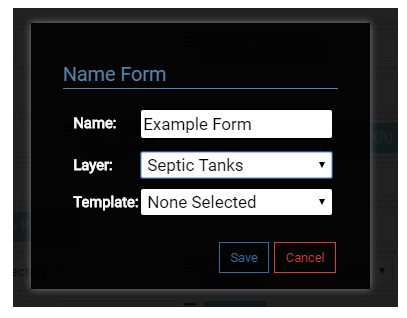
Enter a Name for the new Form, select the Layer that the Form will be based on and select Save to finish.
Note that you could also use a Template to start a new Form. A Template is simply an existing Form that is used as an exact copy to start a new Form.
Templates are useful when you need to setup standards for basic Forms, such a the System Form, that are used for many workflows. Templates also make it easy to iterate through a series of Forms that only differ slightly, such as a Form for a gravity bed, dosed bed, pressure dosed bed, trench or alternative system.
In the Drain Field example, each Form might only vary slightly based on the system type, but because each Form is specific to a Drain Field type there would be fewer blank or non-relevant fields versus using one Form for all Drain Field types.
Form Header #
Once the new Form is Saved, drag Text elements from the Form Fields to add a Title and additional information to the Header.
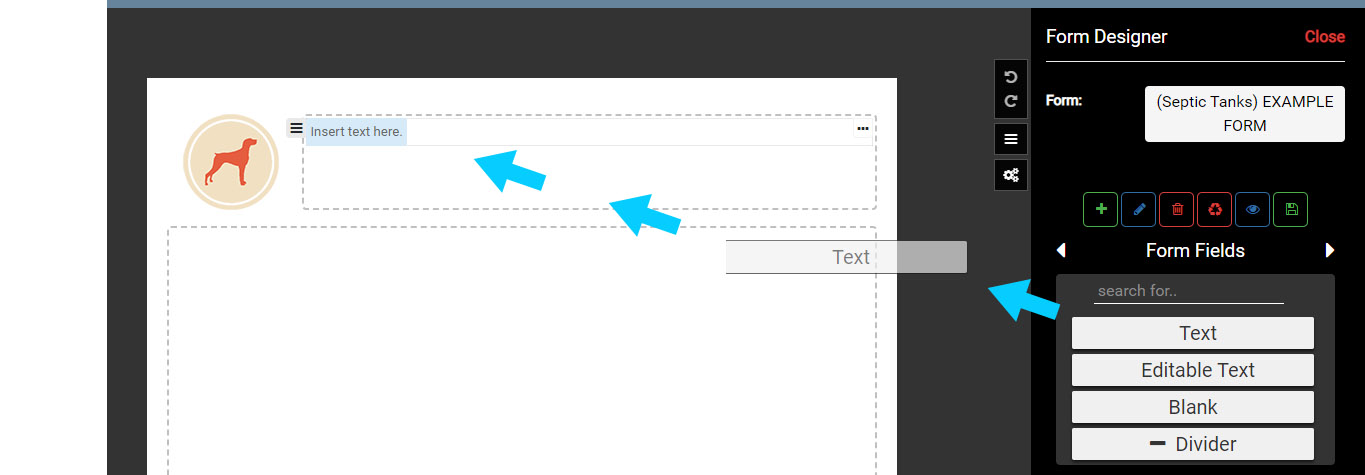
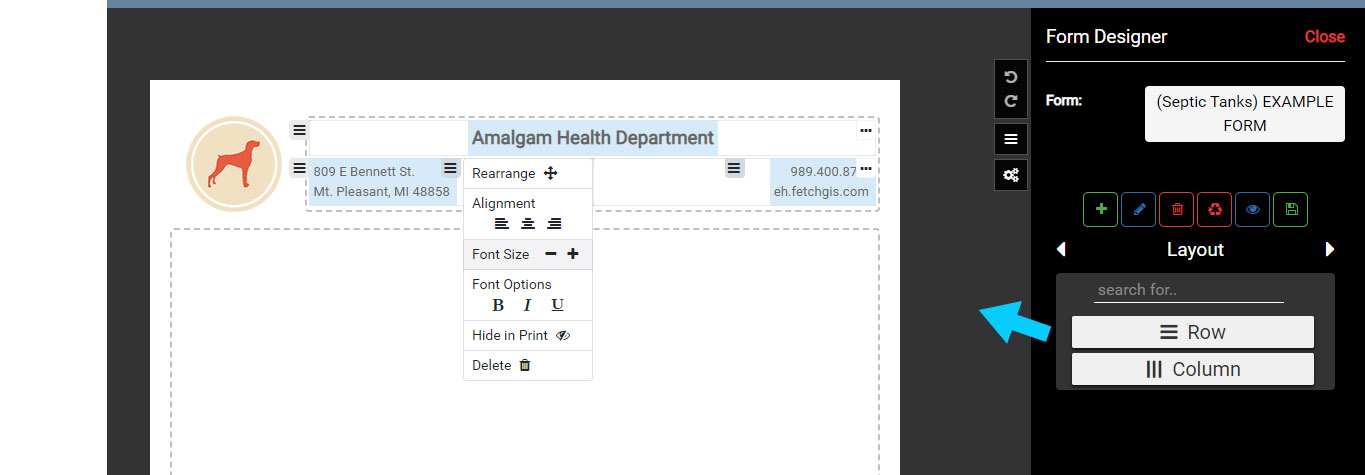
Add Rows and Columns under Layout to further organize information in the Header. Use the context menu to modify font size, options, alignment and more.
Adding a Row #
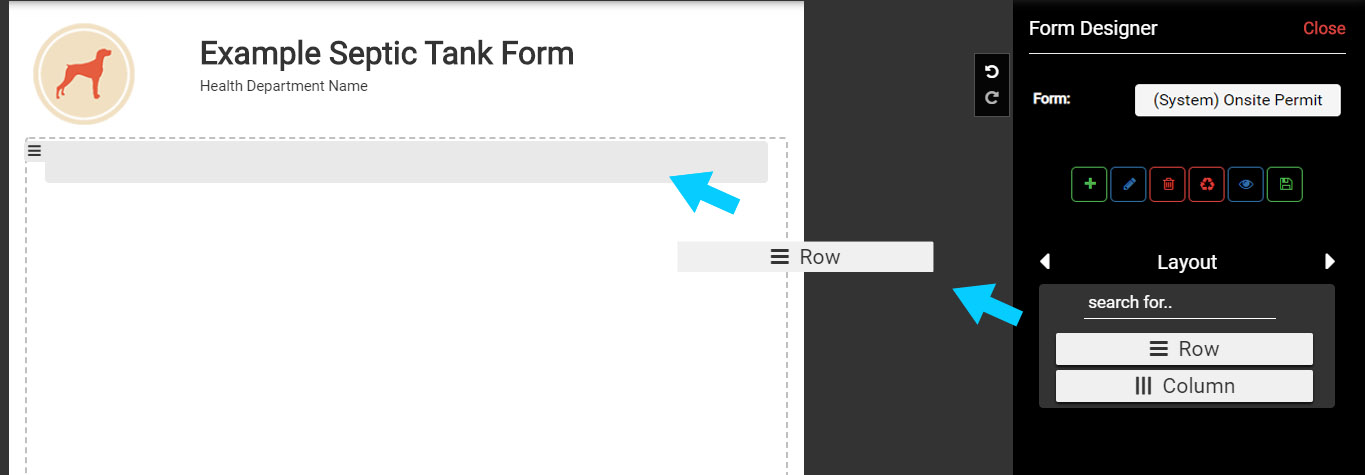
In the Form Elements, page left or right using the arrow buttons to the Layout. Add a new Row by dragging the Form Element Row from the menu onto the Form.
Adding a Text Element #
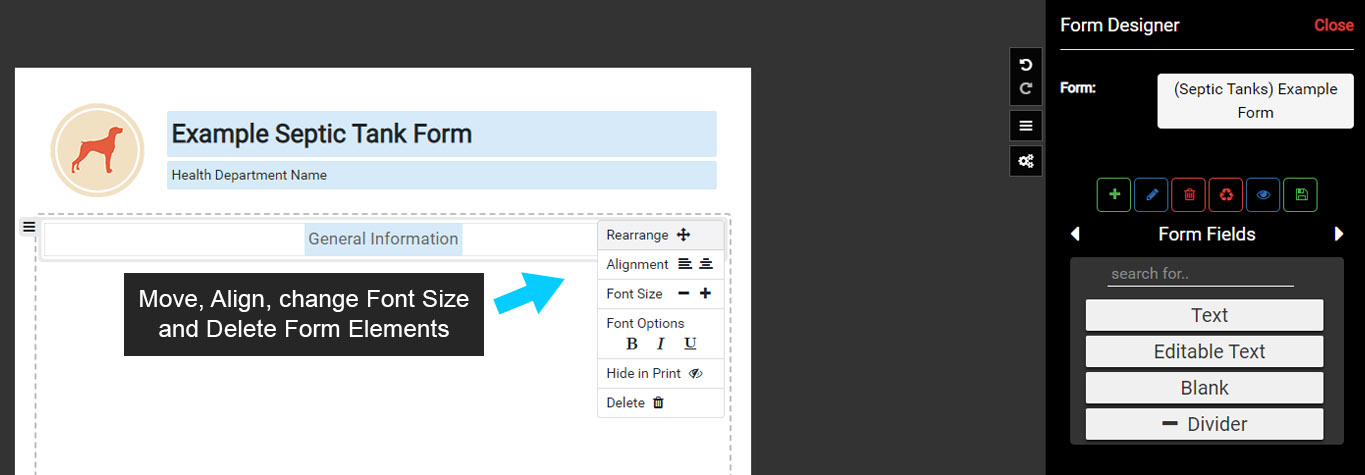
In the Form Elements go to the Form Fields. Add a Text Element to the top Row and then type General Information.
The Menu nested in the Row controls the Text or the Form Element. The Menu outside of the Row (left side) controls the Row.
Use the +/- buttons to change Font Size. Increase the Font of the Text to 14.
Center the Text using Align Center button.
Use the Hide in Print to remove the cell from any output, such as a PDF or hardcopy print.
The Move button is used to drag a Form Element, in this case Text, to a new location. The Delete button is used to remove the Form Element, or a Row/Column if used on the Row/Column Menu.
Form Designer #
Adding Fields to a Form #
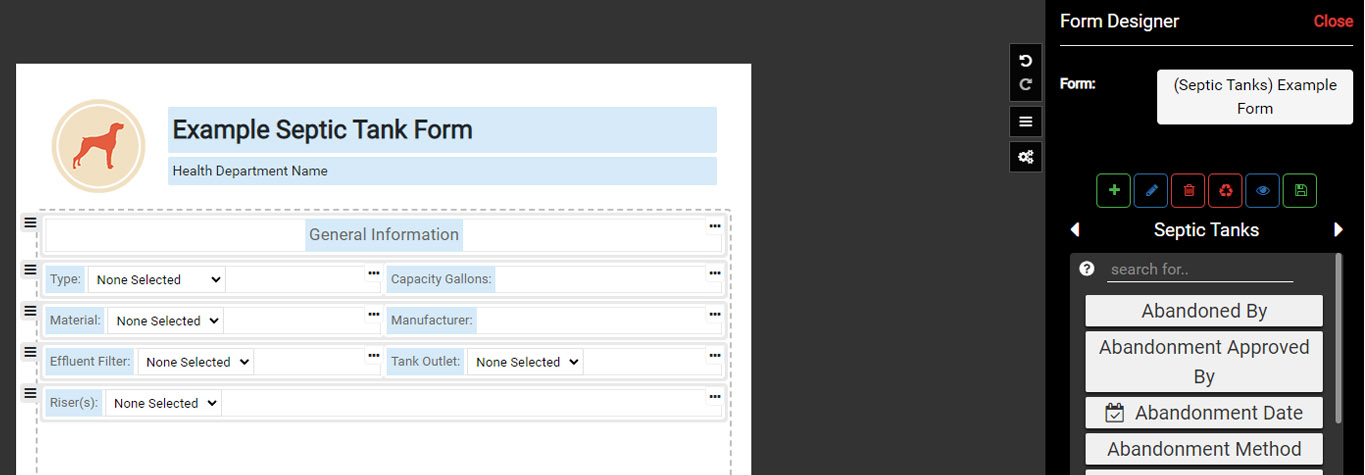
In the Form Elements go to the Septic Tanks, which lists all of the fields available for collecting information about a Septic Tank. Add the following Fields to the Form:
Note that you can drag a Form Element, in this case a Septic Tank Field, to the blank space beneath the second Row and it will automatically create a new Row. You can also use the ‘search for…’ menu to type in a Field name.
- Type
- Capacity Gallons
- Material
- Manufacturer
- Effluent Filter
- Tank Outlet
- Riser
Notice that when a Field is added to the Form, that Field is no longer present in the list of Fields under the Septic Tanks.
Save the Form.
Field Controls – Default Value #
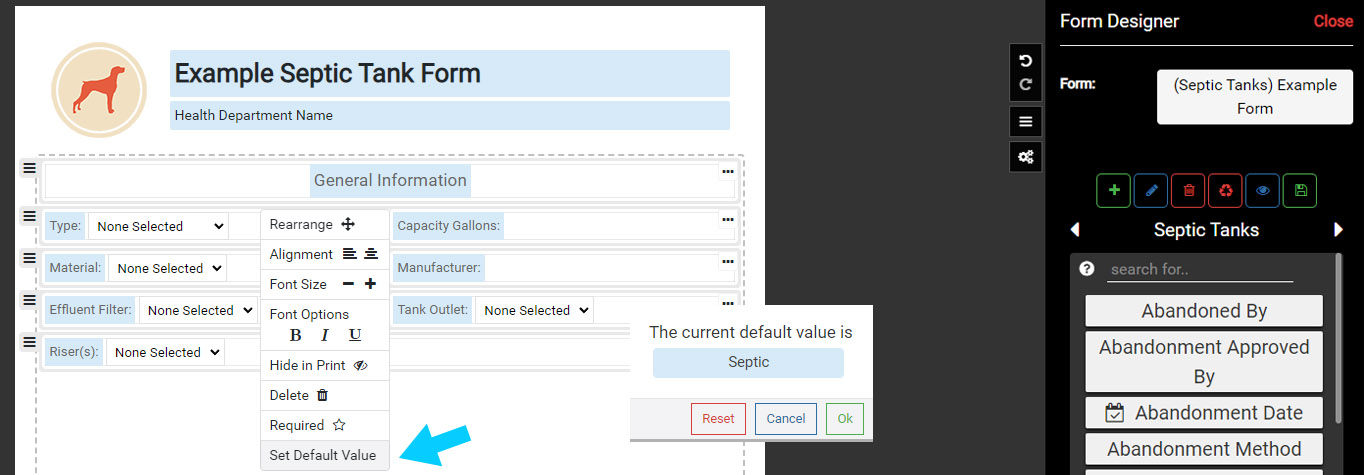
Move the cursor over the three dots in the upper right corner of the Type field. Select the three dots to expand the context menu, which provides additional options for managing how data is entered in a field.
Select ‘Default Value’ from the menu.
The Default Value is used to automatically set a common field value, such as Septic Tank, when entering data in a Form. Select Septic Tank to make it the Default Value.
Note that once a field has a Default Value, a comment icon will appear under the field name.
Save the Form.
Field Controls – Required Field #
Move the cursor over the Capacity Gallons context menu.
Click on the three dots (menu) in the upper right corner to open the context menu and select ‘Required’.
Setting a field to Required will force the user to enter a value for the field before the Form can be saved.
Note that once a field is set to Required, a star icon will appear under the field name.
Save the Form
Field Controls – Autofill #
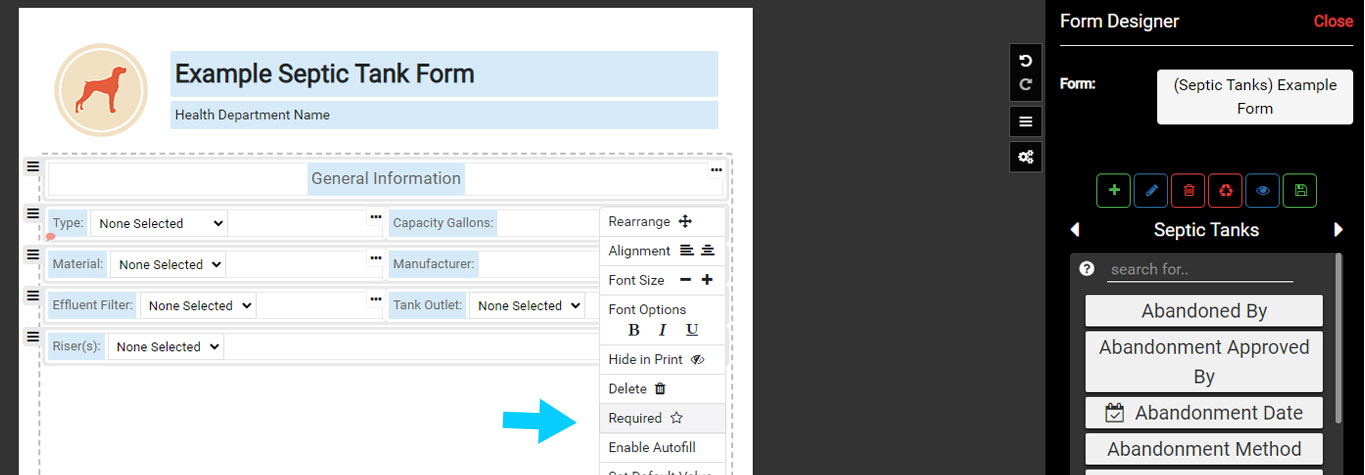
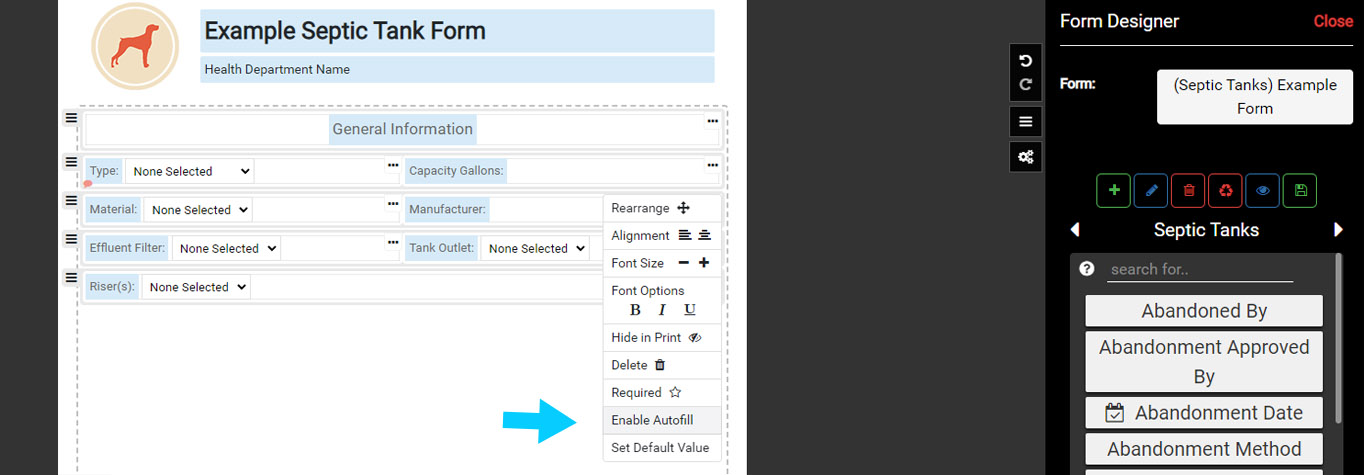
Use the same menu in the Manufacturer field to ‘Enable Autofill’.
When a field has Autofill enabled, the values entered in that field are used to create a pick list for future data entry.
For example, if a user enters the value ‘Acme’ as a Manufacturer, anytime the Form is used again to enter data the value Acme will automatically come up as an option when the letter ‘A’ is typed.
The Enable Autofill is a quick way to build standardization in fields where a value is entered manually. For example, users can quickly build a list of Installers, Manufacturers, Approved By and any other manual entry field.
Note that once a field is set to Enable Autofill, a wand icon will appear under the field name.
Save the Form
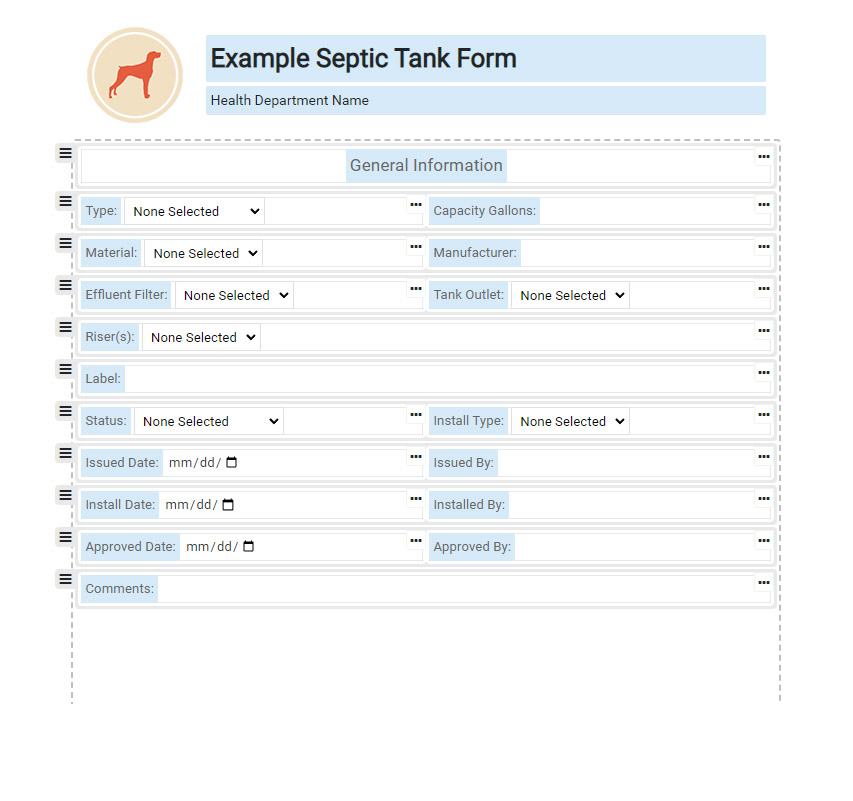
Add another section to the Form with information about the status.
In the Form Elements go to Septic Tanks and add the following Fields:
- Label
- Status
- Install Type
- Issued Date
- Issued By
- Install Date
- Installed By
- Approved Date
- Approved By
- Comments
Save the Form.
Note that you can select the Preview button to see how the Form will look when entering/viewing data. Toggle the Preview button to exit the Preview.
Linked Data Forms Overview #
A Linked Data Form is a Form Element that is embedded in another Form. For example, a System Form can include Linked Data Forms for an Application, Permit, Site Evaluation, Septic Tank, Drain Field, Soil Boring and Building.
A Restaurant can include Linked Data Forms for an Application, Inspection and Fees.
The number of Linked Data Forms available for each Map Layer varies depending on the Map Layer. A System Form will have the most Linked Data Forms available to use because it acts as the management unit for the Onsite System, which can include several mapped features, like the Septic Tank, Drain Field and Soil Borings, but it can also include table records, like Applications, Permits, Site Evaluations and O&M Events.
Using Linked Data Forms #
Start by selecting the Create Form button.
In the new window, Name the new Form Example Form 2, for the Layer select System, and for this Form use a Template by selecting System Template.
The System Template Form is a System Form that was created to store basic information about a System Point. It is a good Form to use as a Template to create other System Forms, and here, you will use it to create a new System Form (Example Form 2).
When the new System Form opens, change the Title to Example System Form and enter a Subtitle.
Save the Form.
Scroll down to the last Row in the Form (Comments) and add another Row that contains a Divider. The Divider can be added under Form Fields.
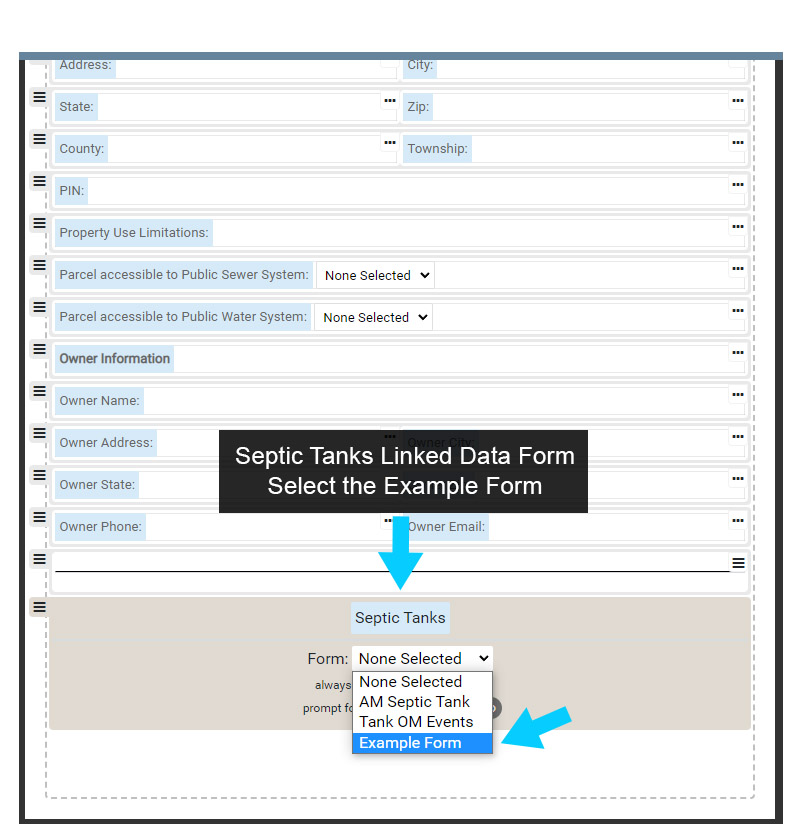
In the Form Elements, go to Linked Data Forms and add a Septic Tank Linked Data Form to the System Form under the Row with the Blank spacer.
Using the Form drop down menu located under the text Septic Tanks, select Example Form from the drop down menu. This will set the Linked Data Form Septic Tanks to the Example Form.
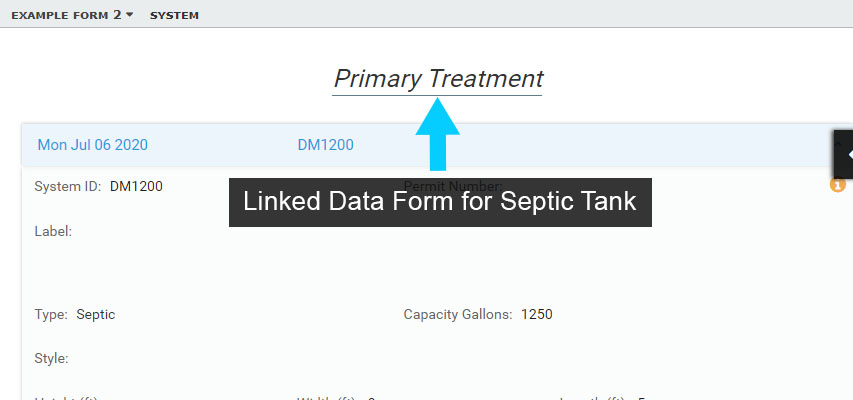
Next, move the cursor over the Septic Tanks text on the Form. Change the text to Primary Treatment or another version of Septic Tanks – just note that you can modify this header text.
Save the Form.
Linked Form Options #
When adding a Linked Data Form you also have two options available to control what Form is displayed as described below:
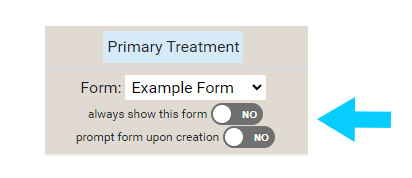
Modify Name of Form: modifying the Linked Form Title will change what the user sees when entering/viewing information. This option is useful for standardizing names to provide consistency with local conventions.
Always show this Form: when toggled on will always show the selected Form (Example Form here) when the Form is used to enter/view information.
Prompt Form upon creation: when toggled on will provide a pick list of all Forms available for the Linked Data Form (Septic Tanks here). This option is useful when multiple Forms have been created to capture, or present, different information for a feature or table record.
For example, there may be several Forms for different Permits, Drainfields, Fees or Inspections. When the Prompt Form upon creation is toggled on, the user would see a pick list of all Permit Forms and select the one that fits the situation.
Use the New Form on the Map #
Make sure the Form has been saved and close the Form Designer.
On the map locate a System point, or map a new one.
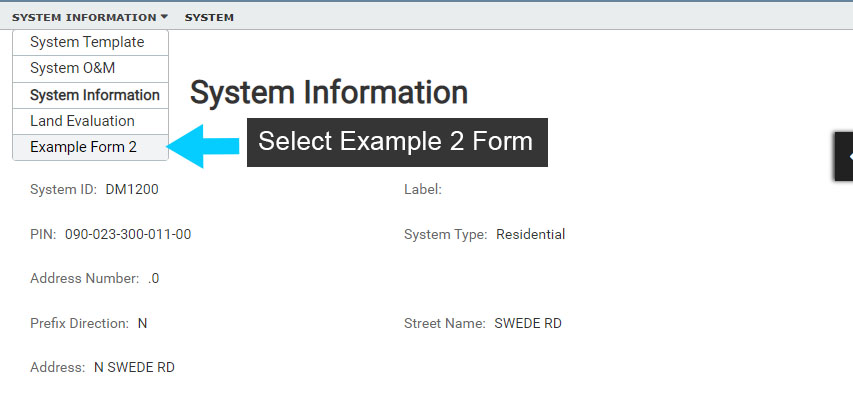
Select the System point, then select ‘Show Form’. This will open the System Form, but the Default Form is likely a System Form other than the Example Form 2 you created.
In the Form drop down menu select Example Form 2. Then scroll down to see that the Example Form you created for Septic Tanks is also displayed.
Note that if a Septic Tank has not been created under the System point, no information will be displayed in the Septic Tank portion of the Form. If this is the case, select the Edit button and add a Septic Tank.
To clean up the Forms created in this example, open the Forms Designer and either Rename the Forms for continued use, or Delete them.
To Delete a Form, the Form that is to be Deleted must be the active or open Form in Form Designer.