Almost all mapping in FetchEH involves mapping Onsite Wastewater Systems or Wells. Mapping a Restaurant or Body Art facility follows the same workflows described here for mapping a System point or Well.
Adding information or mapping onsite system components for an Onsite System should always start by mapping a System point.
Once the System point is mapped, additional features (Septic Tank, Drainfield) can be mapped and will always be linked to the parent System point.
This step is critical to building data that can be used for Insights and Reports.
The System point is used to manage all Onsite System items that can be mapped, like Septic Tanks, Drainfields and Soil Borings, and any Form data that is not mapped, like an Application, Permit, Inspections and more.
Similarly, a Restaurant can be mapped as a feature and is used to manage all Form data related to the Restaurant, such as Inspections and Violations.
Wells are also mapped as a single feature and then used to manage corresponding Well information (Permit, Water Samples, Well Inspections, etc.).
When entering data for any feature consider how the data will be used for both workflow requirements and Insights/Reporting. Much of the data entry will be guided by MPRs, but also consider additional benefits to understanding your Onsite, Well or Restaurant inventory through data collection.
For example, with Onsite Systems and Wells, we recommend entering information about the Status, Type, Size/Capacity and a Date, such as Approved/Final Date, of Onsite Systems and Wells.
Mapping and initial data entry is initiated by selecting the Feature Editing Controls button on the main menu. Selecting this option opens new menus that are displayed in the side pane. These menus provide access to map the initial System point, Well or Restaurant.
Mapping Workflow #
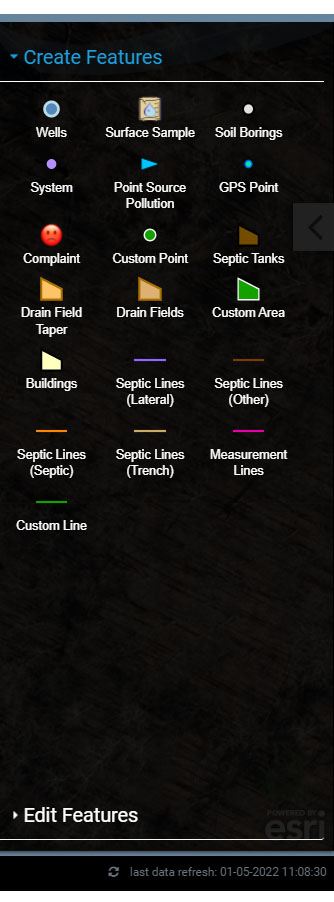
To access mapping and feature editing tools select the Feature Editing Controls button on the Main Menu. This opens the side pane with new menu options to Create Features and Edit Features.

The Create Features menu is used to select a feature type that will be mapped, such as a Restaurant, System, Well, Measurement Lines and more. Selecting a feature type from the Create Features menu will open a new menu, which will provide additional tools for mapping the feature selected. Menu options will vary depending on the feature being mapped.
Mapping Onsite System features (Septic Tank, Drainfield, Buildings, Soil Borings) should always start by first mapping a System point.
Editing feature geometry, such as moving a feature, rotating a feature or deleting features, is completed in the Edit Features menu, which is opened when selecting an existing feature on the map.
Modifying information (attributes) for a mapped feature is accomplished using the corresponding features Form (Septic Tank Form).
The workflow for mapping a System point, Well, Restaurant follow the steps below:
1. Select the System, Well or Restaurant from the Create Features Menu.
2. Map the feature and add information using the corresponding Form (System, Well, Restaurant).
3. To open a mapped features Form, select the feature to open the Information Window and then select “show form”.
Note: to map additional system components for an Onsite System (Septic Tank, Drainfield, Soil Borings, etc.) use the System Form to add and map system components.
4. Use the Create Features Menu to add additional map features, such as Measurement Lines, Custom features, Tapers, Laterals and more.
The following sections provide more information about the mapping tools available in the Drawing Tools menu and Edit Features menu.
Create Features Menu #
The Create Features menu provides a list of features that can be mapped. To map a new feature select a feature type and the Map Tools for that feature will open. The Map Tools menu will display mapping tools specific to the type of feature that is to be mapped. For example, mapping a Well (point) requires different Map Tools than mapping a Septic Tank (polygon) or a Measurement Line (line).
Create Features Using System Form #
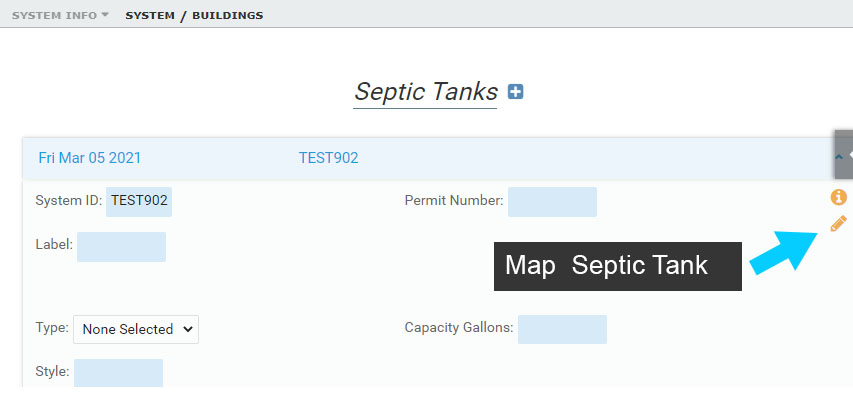
Use the System Form to add system components, like a Septic Tank and Drainfield. Open the System Form and select the ‘Add to map’ button. Selecting the ‘Add to map’ button will open the Map Tools menu for the feature that is to be mapped.
Draw Tools – Line Features #
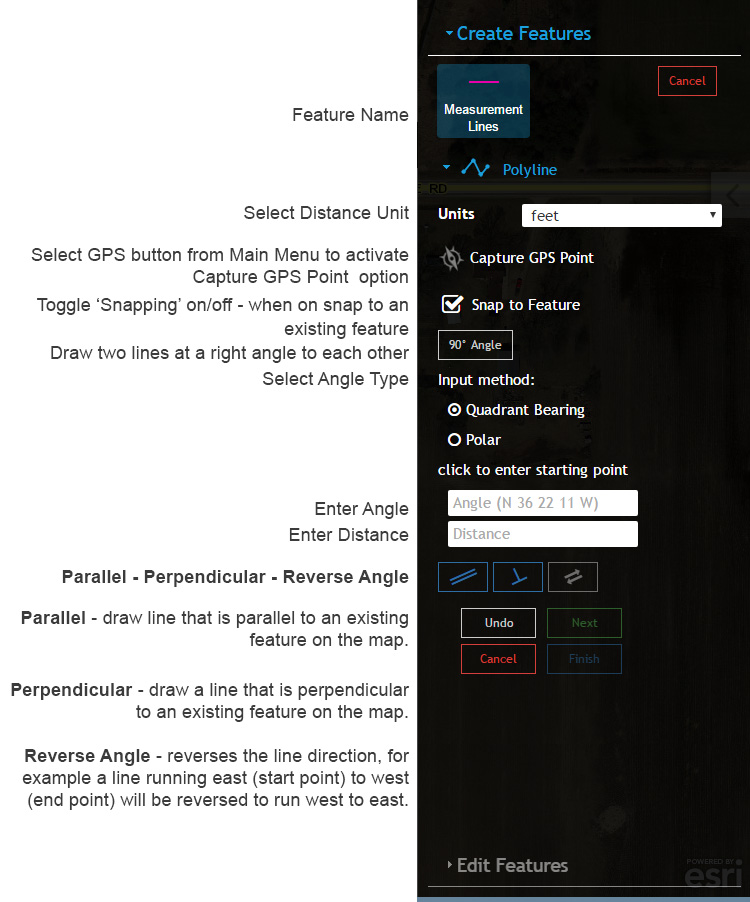
To start mapping a line feature and activate all of the Draw Tools click a starting point on the map display. Common Line Features include Measurement Lines, Septic Lines and Custom Lines.
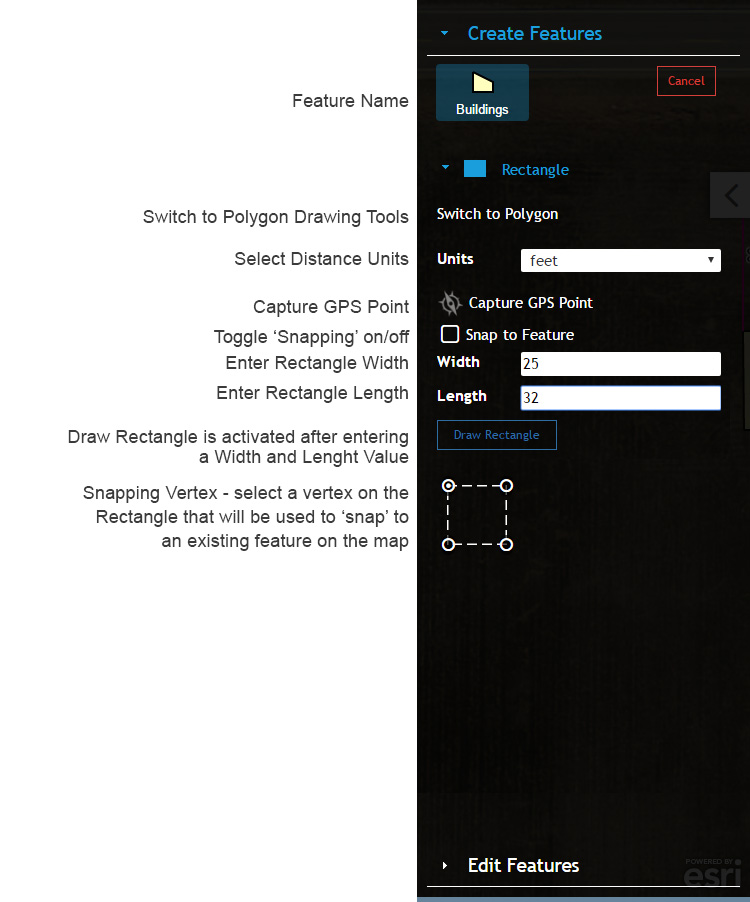
Draw Tools – Polygons (Area) as Rectangles #
Polygon features can be mapped by a user defined Rectangle. Common Polygon Features include Septic Tank, Drain Field, Buildings and Custom Area.
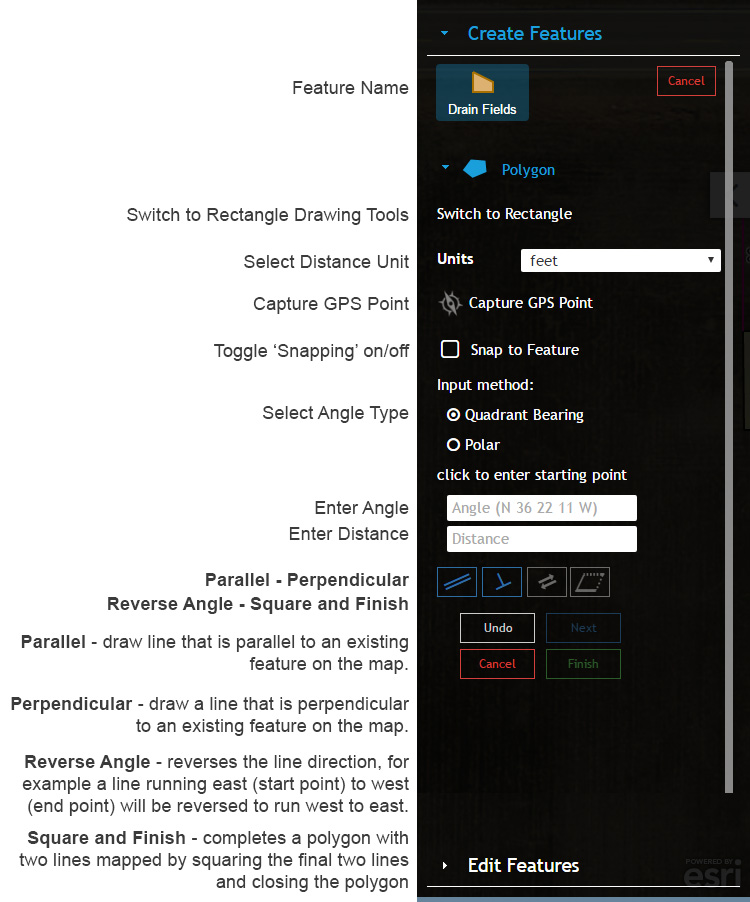
Draw Tools – Polygons (Area) #
Polygon features can be mapped using advanced Polygon tools. Common Polygon Features include Septic Tank, Drain Field, Buildings and Custom Area.
Angles #
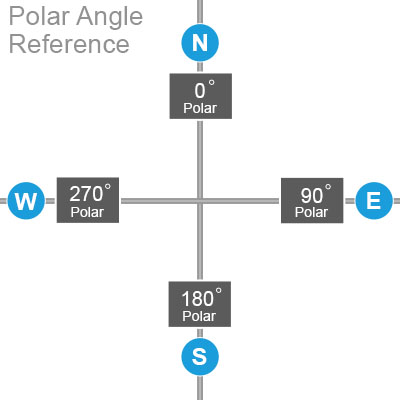
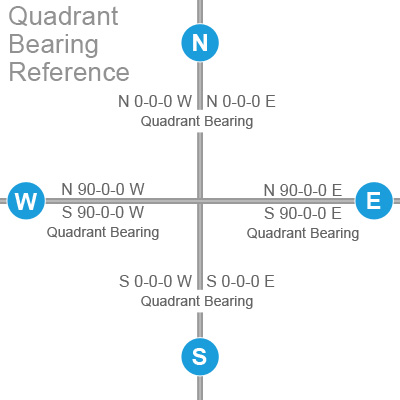
There are two options for entering angles when mapping a feature. Use the Polar Angle Reference and Quadrant Bearing Reference below to understand how to input each angle type.
Polar Angle Example Inputs:
N = 0
SW = 225
Quadrant Bearing Example Inputs
Breakdown of Angle
N DD MM SS W where:
DD is Degrees
MM is Minutes
SS is Seconds
N and W is Quadrant (NW)
Example Quadrant Bearing
N 45 20 15 W
Angle Reference #
Edit Features Menu #
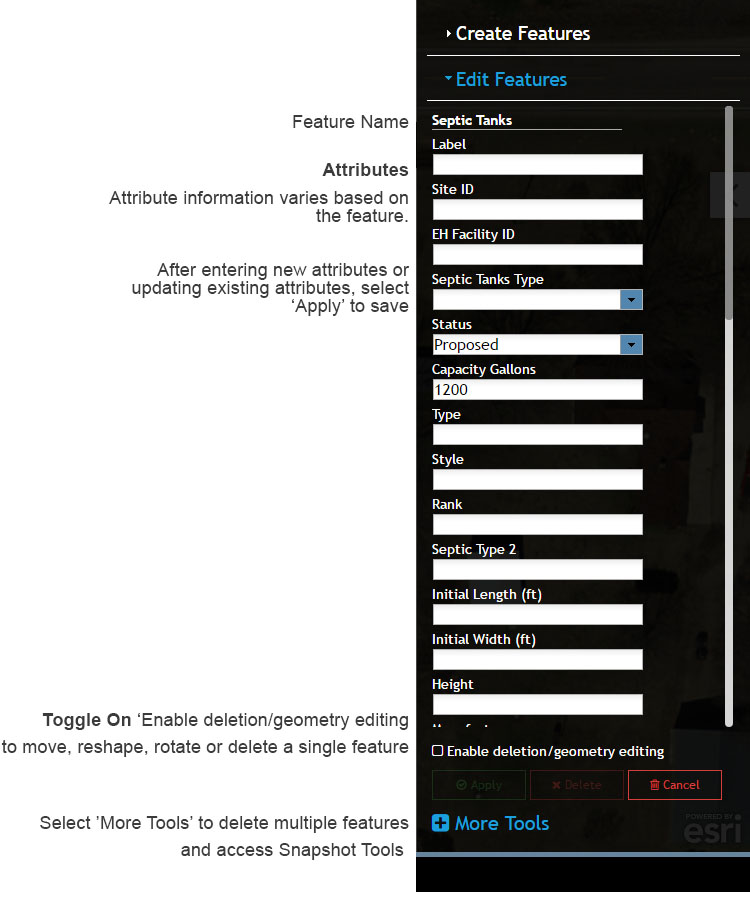
The Edit Features Menu opens after creating a new feature or when an existing feature is selected. Use the Edit Features Menu to make geometry edits (change the mapped feature). Editing feature attributes using the Form instead of using Edit Features menu. Select the System point or other mapped Feature (Restaurant, Well, Septic Tank, Drain Field, Soil Boring) and then select ‘Show Form’ in the Information Window.
More Tools #
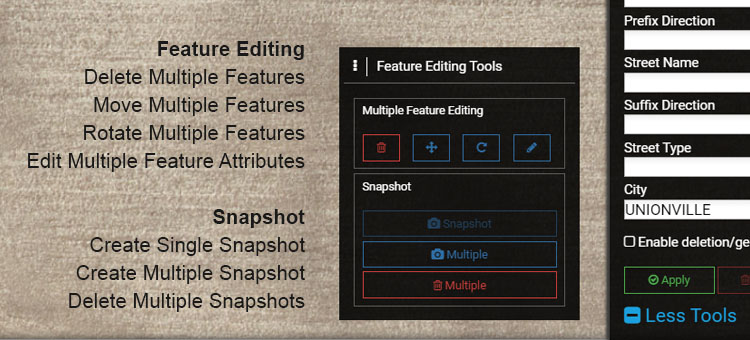
Select ‘More Tools’ on the Edit Features menu to open the More Tools menu for deleting and moving multiple features, and creating and removing Snapshots. When using any of the tools a new menu will open to guide the specific workflow.
Feature Editing Menus
Delete Multiple Features: use to delete multiple features from the map.
Move Multiple Features: use to move multiple features.
Rotate Multiple Features: use to rotate multiple features.
Edit Multiple Feature Attributes: use to modify an attribute of multiple features, such as updating the O&M Permit Expiration date on multiple System points.
Snapshot Menus
Create Single Snapshot: use create a Snapshot for a single mapped feature.
Create Multiple Snapshots: use create multiple Snapshots for more than one mapped feature.
Delete Multiple Snapshots: use to delete multiple Snapshots from the map.